Installing The PowerPixel ⚡
General PowerPixel Installation Instructions
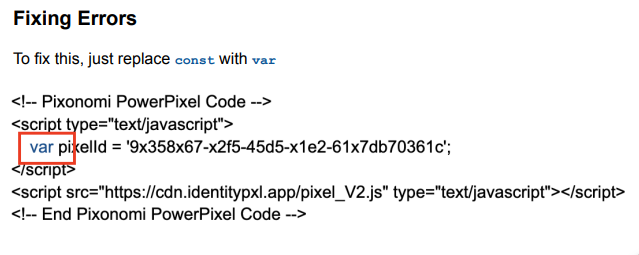
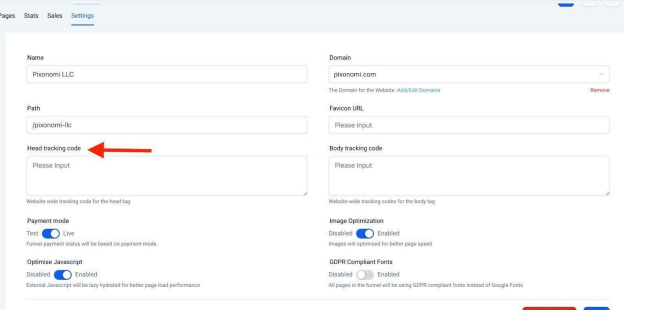
Go to your website and paste the following code in the header of your website. Make sure the pixel is applied globally or added to every page you want the pixel to track.
Wix
Log in to Wix and select Edit Site. Once the site editor loads, click Search in the upper righthand corner and search for "tracking." This will pull up Wix's tracking tools. Click Tracking Tools in the Dashboard section.
Once that's loaded, click the Add Code link in the Head section to add the code to your site. A dialogue window will pop up with a text field. Paste the code, then close the dialog window. Next, click Publish.
WordPress
Option 1: Use a plugin
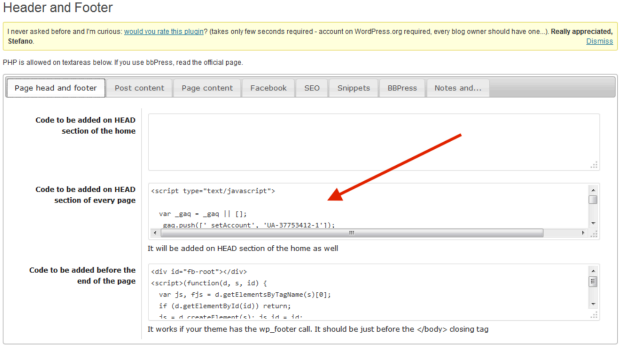
- Install the plugin: Header and Footer. (https://wordpress.org/plugins/header-footer/)
- Go to the configuration panel of the plugin.
- Under the "Page head and footer" tab, add the PowerPixel code to the section which says "Code to be added to the HEAD section of every page"
Option 2: Add directly to the header.php file
- Go to "Appearance", then "Theme Editor", then "header.php".
- Search for < head>.
- Paste the PowerPixel code by right clicking under the tag.
- Save the code by clicking "Update File".
Option 3: Add directly to the header.php file alternative
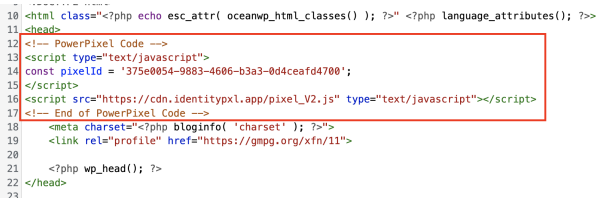
- Go to Settings > Theme Editor in your WordPress admin.
- Open the header.php file.
- Paste the PowerPixel code into the header.php file, just before the closing tag
- . Save the header.php file.
BigCommerce
Using Global Regions
- Log into BigCommerce, then navigate to Storefront > Themes. Find your current theme and click the Customize button for that theme.
- The best way to place the PowerPixel pixel is to use the global region in the header.
- Click the HTML widget and drag it to the global region in the header. Then clear out the default contents of the widget, and add the PowerPixel code. Then click Save HTML.
- Click the HTML widget and drag it to the global region in the header. Then clear out the default contents of the widget, and add the PowerPixel code. Then click Save HTML.
Script Manager
- Access the Script Manager - go to Storefront › Script Manager.
- To add a script, click Create a Script.
- Name your script something easy to identify e.g. ‘Pixonomi tracking
- Select ‘Head’ for Location on page
- Select ‘All pages’ for Select pages where script will be added
- Select either ‘Essential’ or ‘Functional’ for Script Category <>Select ‘Script’ for Script>
- Paste your PowerPixel code in the Script contents box
GoDaddy
- Log in to GoDaddy and select My Products. From the list of websites, choose the website you'd like to add the PowerPixel to. Once the site loads, click the Edit Website button.
- Unfortunately, there's no way to place a third-party tag easily in GoDaddy. The best way to do it is to add an HTML section at the top of your website
- Scroll to the top of your website and click the plus sign (+) to add a section. For the sectionoose HTML.
- This will pull up an HTML widget that you can add to the page. Click the Add button, and once the section loads, go to the Custom Code section. Then, paste the PowerPixel code there, and click Done.
- Then click Publish.
Shopify
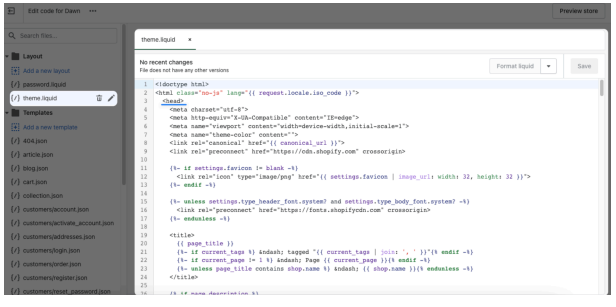
Go to your Shopify store’s admin panel first and go to the “Themes” section. Click on the “Edit code” of your store’s theme.

Go to the header section of your Shopify store’s theme from the theme.liquid part. Enter your PowerPixel code between < head> and tags so that it will be located in the middle of your theme’s header code. Click on the “Save” button when you are finished
Advanced - Google Tag Manager
Paste PowerPixel code inside the